

Teams
Teams let multiple members create and use their own API keys while spending the owner's balance, subscriptions and group entitlements. The owner sets per-member limits and sees team-wide usage. Go to the team page.
Roles
Rules: an account belongs to at most one team at a time; teams are flat (no sub-teams); there is no separate team wallet — spending hits the owner's account directly.
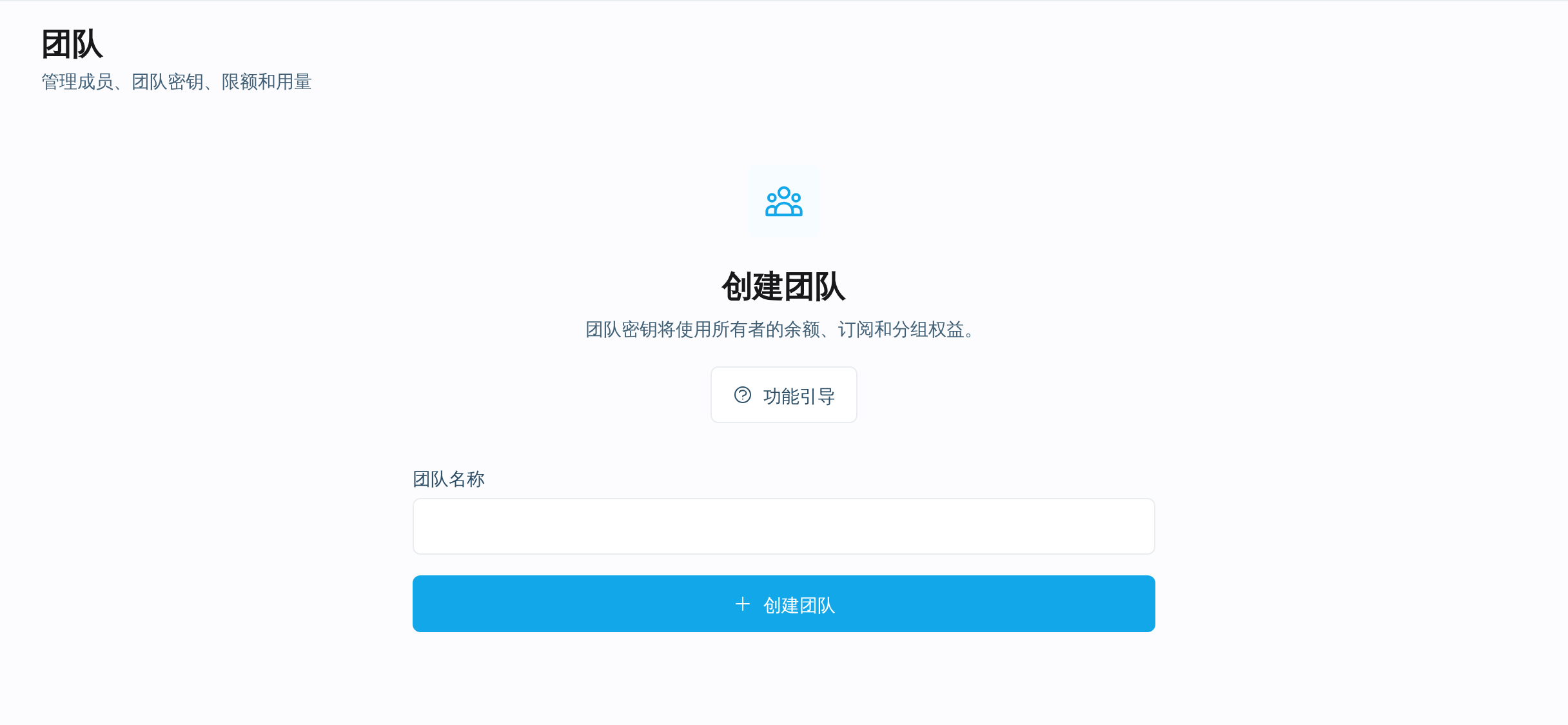
Creating a team
- Sign in and open the team page.
- Enter a team name and create.
- The creator automatically becomes the sole owner.
Invitations
- Only the owner can invite, by targeted email (the mail carries a confirmation link).
- The invitee signs in with the account matching the invited email and accepts via the link.
- Invitations expire — just resend; only the newest pending invitation per email per team is kept.
- Common join failures: signed-in email differs from the invited one, expired invitation, already in another team, team full or suspended.
New members inherit the team's current default member limits on joining.
Member limits
Limits come in daily / weekly / monthly tiers to cap individual spending:
- 0 means unlimited for that tier;
- They bind regular members only — owners are exempt;
- They roll over calendar days/weeks/months and reset automatically;
- Hitting any tier makes the member's team keys reject requests until the cycle resets or the owner raises the limit.
The owner can set default member limits (affecting future joiners only) and edit individual members separately.
Team keys
Create team keys on the API Keys page with the scope switched to Team in the top-right corner:
- Every member can create team keys; available groups come from the owner's entitlements;
- Scope is fixed at creation — personal and team keys cannot convert into each other;
- Members see only their own keys; the owner sees all team keys (masked) and can disable / enable / delete any;
- A key disabled by the owner cannot be re-enabled by its member.
Key plaintext is shown once, to the creator only — not even the owner can see it.
Usage visibility
- Members see only their own requests on the usage page.
- Owners see team-wide requests with an extra "member" column and per-member spending summaries for auditing and cost-sharing.
- The detail table gains a member column showing who made each call;
- The summary area adds per-member usage and spending charts;
- Combined with daily / weekly / monthly limits, it is quick to spot members with unusual consumption.
Membership changes
Note: owners cannot simply leave — transfer or dissolve first. Rejoining later does not revive previous team keys; they must be recreated.
Related
- Create an API Key — key creation flow
- Billing — deduction order and purchasing
- Usage records — request details and spending trends